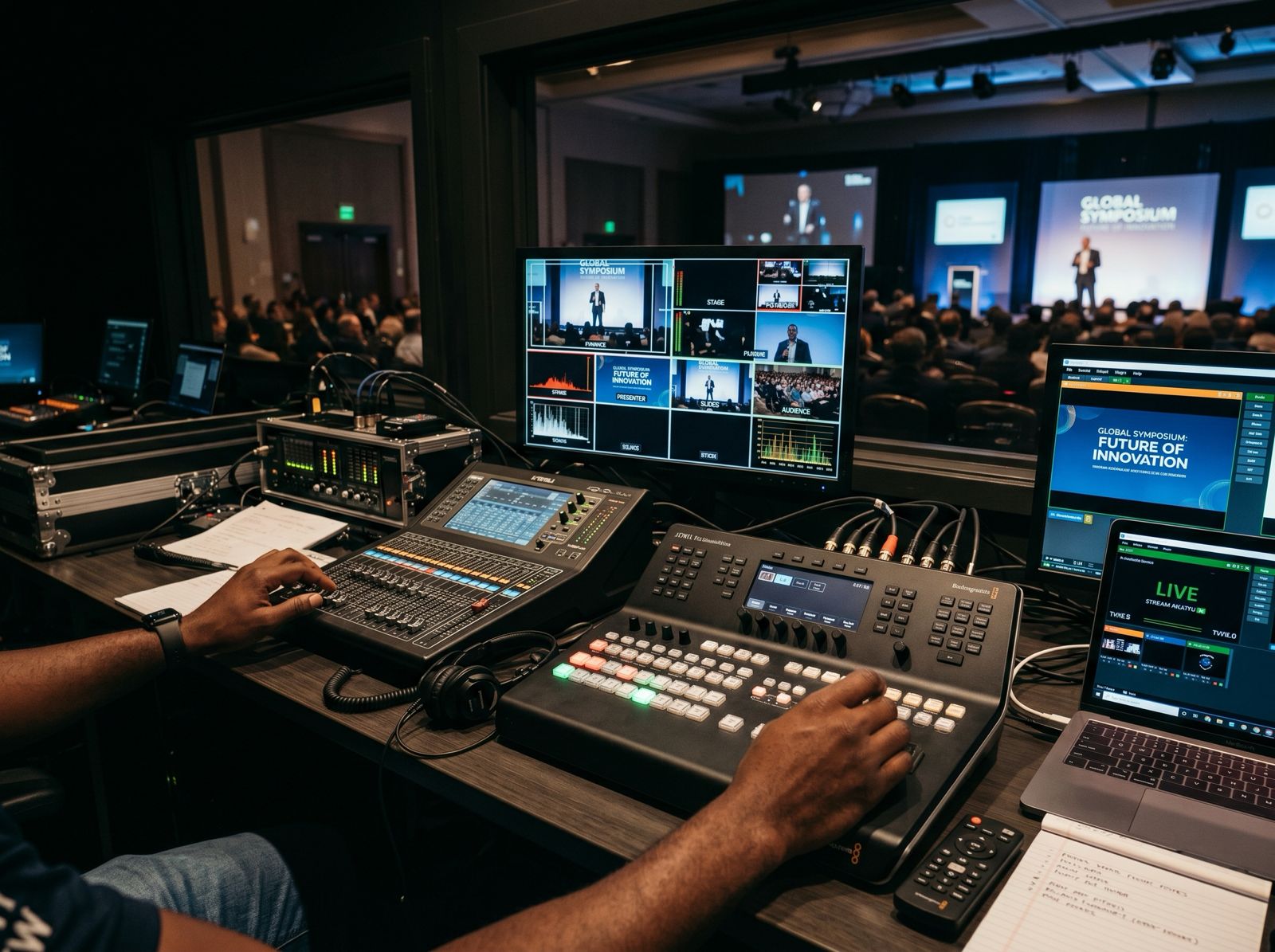
YouTube checks every live stream for third-party content while it is live. If it finds a match, such as a worship song a publisher or label has registered, it can warn you, replace your stream with a placeholder image and, if the content stays in, interrupt or end the broadcast. A CCLI Streaming Licence gives your church permission to stream the music. YouTube’s matching system can still flag it unless the rights owner has added your channel to its allowlist, which is why licensed churches still see warnings.
How YouTube checks a live stream
YouTube’s help page on copyright in live streams says all live streams are scanned for matches to third-party content, including other live broadcasts. When it finds one:
- a placeholder image may replace your stream
- you get a warning to stop streaming the matched content
- if you deal with it, the stream can carry on
- if the content stays in, the stream may be temporarily interrupted or ended
Copyright strikes and Community Guidelines strikes can also end a stream.
Content ID claims work differently. YouTube makes them only after the live stream finishes, and only if you archive the video. So a service can run live without a problem and then pick up claims on the saved recording.
Why a licence doesn’t stop the warnings
The CCLI Streaming Licence extends your Church Copyright Licence so you can stream or upload services that include worship songs performed live by your own musicians. CCLI’s streaming licence page says some platforms may still issue a warning when music is played. CCLI adds that you will usually get an option to confirm you have permission for the music.
YouTube’s own advice for licensed content is to ask the rights owner to add your channel to their allowlist through Content ID. It warns that a stream may be interrupted even when you have a licence, if your channel isn’t on that list. Asking every publisher whose songs you sing is rarely practical, so the steps below matter more.
Steps that reduce interruptions
Put your licence numbers in the description
CCLI recommends adding both your Church Copyright Licence number and your CCLI Streaming Licence number to the description when you start the stream or upload the service. If you schedule streams in advance, put the numbers in the scheduled description so they are there from the first minute. Add them to the description of any recording you upload later too.
Check what your licence covers
The standard Streaming Licence covers songs your musicians play live. Artist tracks, backing tracks and multitracks are master recordings, and they need the CCLI Streaming Plus Licence.
Video is a separate question. CCLI says Streaming Plus usually covers the audio of a recording only, and that showing video content usually needs permission from the copyright owner. The exception it names is SongSelect Lyric Videos, which Streaming Plus holders can currently show during a live stream. A film clip in a sermon or a music video played during the offering needs its own permission, and either can trigger a match.
Our post on the CCLI Streaming Licence explains the licences in more detail.
Watch the music before the service starts
Walk-in music is easy to forget. If the stream starts early with recorded worship tracks playing in the room, those are master recordings, and the same rules apply. Countdown videos and holding slides with music carry the same risk.
Use tracks your licence covers, or music that is cleared for YouTube. The YouTube Audio Library, found in YouTube Studio, has royalty-free production music and sound effects. YouTube says this music won’t be claimed through Content ID. Some tracks ask for a credit in the description, and you can filter for ones that don’t.
Respond to a warning straight away
Don’t leave a warning on screen and hope it clears. Follow the prompt. If you are given the option to confirm permission and the music is covered, use it. If the content isn’t covered, take it out of the stream.
If a stream stops, YouTube’s help page says to check your YouTube Studio dashboard for strikes. Fixing the issues listed there can restore your access to live streaming. If you archived the service, look through any claims on the saved video as well.
Clips from the service
If you cut short clips from the service afterwards, a clip with a worship song in it can pick up a Content ID claim. YouTube’s page on three-minute Shorts used to say that any Short over one minute with an active claim is blocked worldwide. The UK English version now says that from 24 September 2026, new Shorts between one and three minutes with a claim are no longer blocked automatically and may stay playable. When we checked, the US English version still showed the older rule. The page says nothing changes for Shorts under one minute.
Keep clips with music to a minute or less, or cut them from the spoken parts of the service. Our guide on turning a sermon into clips covers the rest of that process.
Streaming to more than one platform
Sending the same service to Facebook or TikTok as well adds each platform’s own requirements. Our post on streaming to YouTube, Facebook and TikTok at once goes through them.
Booking a crew for a streamed service
If you book Aligned Vision to stream a service, conference or worship night, send your licence numbers with the running order. Flag any recorded music, backing tracks or video clips in the plan, so they can be checked before the day. Our live streaming packages list what each option includes, and you can contact us to talk through a booking.