Start with a format and a release schedule your team can keep. Record clear sound for every voice and film on a set that looks the same each episode. Publish the full episodes as videos in a YouTube podcast playlist, then cut each one into short vertical clips for Reels, Shorts and TikTok.
Choose a format first
The format decides how many people you need in the room and roughly how long each episode runs. Common formats for churches and ministries:
- Conversation. Two or three regular hosts talk through a theme, a Bible passage or a question from the church.
- Teaching. One speaker teaches on a topic, often as a series.
- Testimony. A host interviews one guest about their story and their faith.
- Q&A. A pastor or guest answers questions sent in by the congregation or by people online.
Then decide how often you’ll release episodes. Choose a gap your team could keep up for at least a year, whether that’s weekly or monthly. Recording two or three episodes in one session gives you some weeks in hand if a host is ill or away.
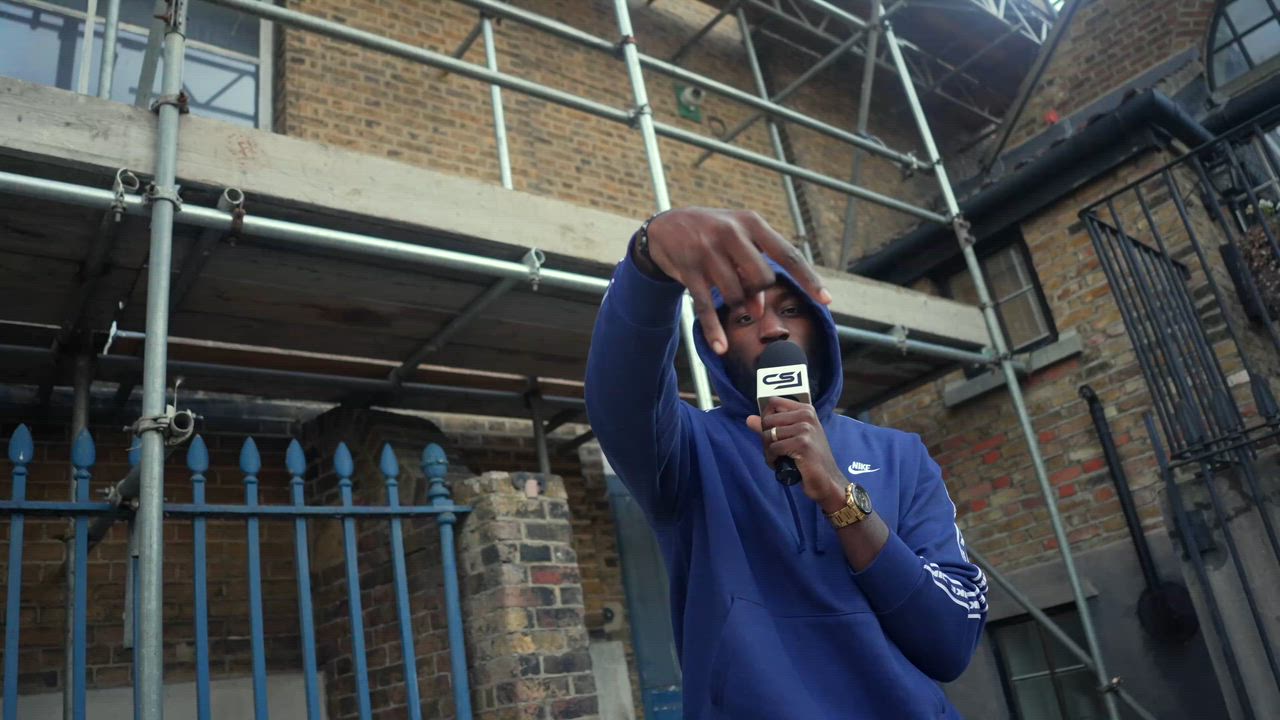
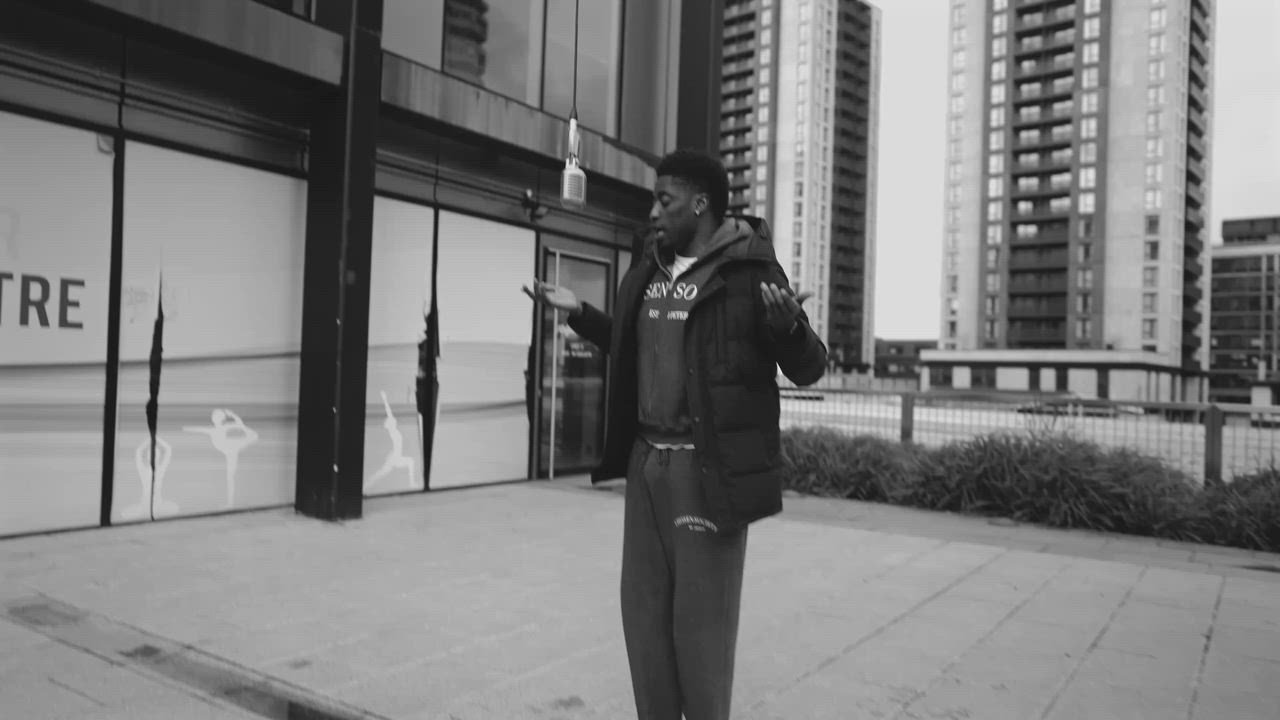
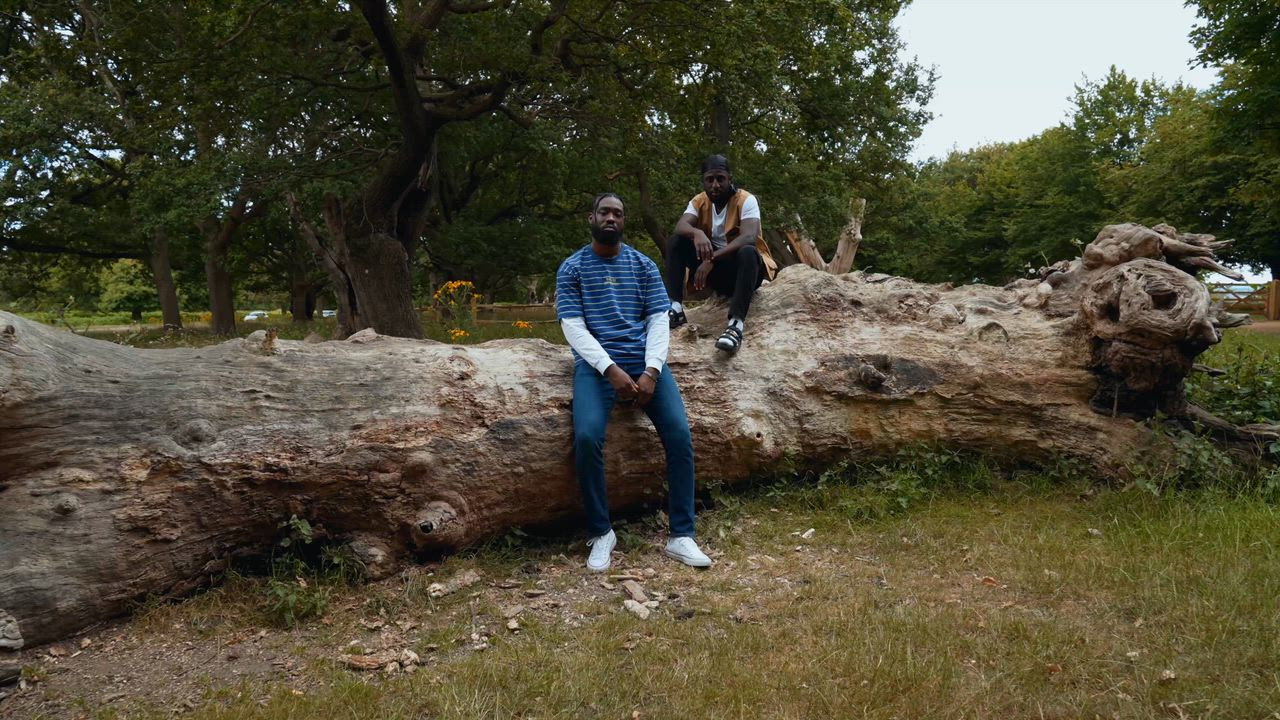
If you want a conversation format with artists, look at The Upper Room. It’s our series where Christian creatives gather for honest conversation before stepping into freestyle.
Plan the sound before the picture
YouTube makes podcast videos available for audio-only playback, so some people will hear your episode without ever seeing it. Sort out the sound before you think about cameras.
- Give each speaker their own microphone, close to their mouth.
- Record in a room with soft furnishings. Bare walls and hard floors make voices echo.
- Have someone wear headphones during recording, so they hear problems as they happen.
- Record a short test with everyone talking, and listen back before you start.
Our podcast service combines professional audio recording, multi-camera production and editing.
Cameras, set and lighting
With two or more cameras you can hold a wide shot of everyone and a closer shot of each speaker, then cut to whoever is talking. It also gives you a clean shot of each person to use in clips later.
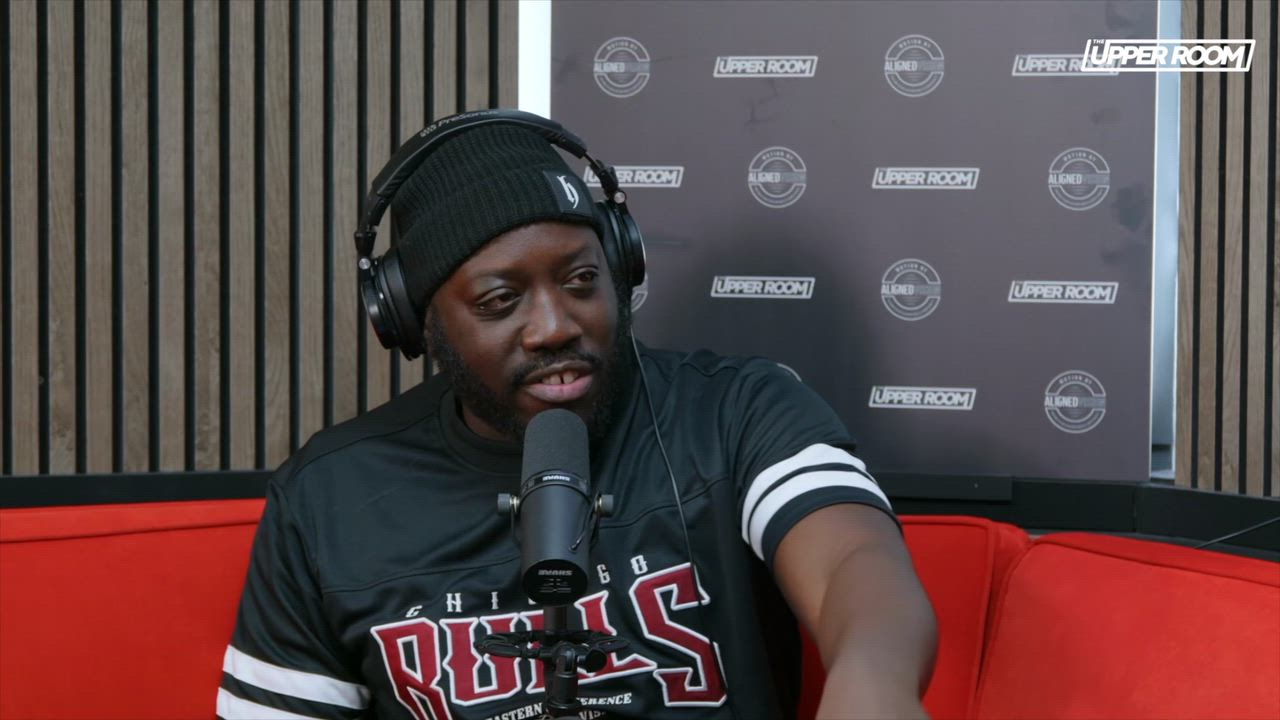
Keep the set the same from week to week so the episodes look like one series. Use the same seats and backdrop, with the lights in the same positions. Take photos of the set-up and mark positions on the floor with tape, so you can rebuild it quickly. The Upper Room set in the photo above uses a backdrop printed with the show’s name, so the name is in shot behind the guest.
For lighting, put a soft light in front of each speaker and avoid a bright window behind them. Daylight changes during a long recording, while lamps stay the same across a whole series.
Set up the podcast on YouTube
YouTube’s guide to creating a podcast in YouTube Studio explains how it works. A podcast show is a playlist, and each episode is a video in that playlist.
- To start one, go to YouTube Studio, click Create and choose New podcast. You can also set an existing playlist as a podcast. YouTube may ask you to verify your account first.
- Add a title, a description and a square podcast thumbnail. YouTube recommends 1280 x 1280 pixels.
- Don’t add extra words such as “podcast” to the show title unless they’re part of its name.
- Only add full-length episodes, in the order they should be watched. YouTube says not to add podcast features to separate playlists of clips.
- MP3 files can’t be turned into podcasts on YouTube. Each episode has to be a video.
- Some playlists aren’t eligible for podcast features, including content the creator doesn’t own. An episode that breaks YouTube’s copyright policies may also lose podcast features. If worship music is played during an episode, read Why church live streams get copyright warnings on YouTube first.
What about an RSS feed?
YouTube can also take episodes from a podcast RSS feed, in selected countries and regions. Its page on delivering podcasts by RSS says YouTube uses your show art to create a static-image video for each episode. Podcast content uploaded this way can’t contain advertisements, and branded content or sponsorship has to be declared. If you film your episodes, upload the video files directly so people can watch the conversation.
Stream it live
You can also record an episode as a live stream. Our Essential streaming package on the live streaming page costs £500 and lists podcasts among its best uses. It includes:
- 1 camera operator and up to 2 camera angles
- Live switching
- Streaming to 1 platform, such as YouTube or Facebook
- A direct venue audio feed
- Up to 3 hours of coverage
If you need more cameras, the Professional streaming package costs £1000. It has 2 camera operators, up to 4 camera angles and multi-platform streaming, which depends on the internet connection at the venue.
Cut clips from every episode
Most episodes have a few moments that make sense on their own, such as a clear answer to a question or a short story. Turn those into clips:
- Pick moments that don’t need anything said earlier in the episode to make sense.
- Reframe them to vertical 9:16, keeping the speaker’s face in the frame.
- Add captions so the clip works with the sound off.
- Point people to the full episode in the post’s caption or description.
The same steps work for sermons. See How to turn a sermon into short clips for social media, and for caption files and styles, Captions and subtitles for church and creator videos.
If you’d rather hand the clips over, our content creation packs deliver vertical promo reels in 9:16 with captions. The Starter pack is £150 for 5 reels of up to 60 seconds each, and the Professional tier is £350 for 10.
Book a podcast shoot
Tell us your format and where you’d like to record. Contact Aligned Vision and we can talk through how to film and stream your series.